Reports
Reports shows what happened outside the schedules, and who did what, over a period. Every report downloads as CSV.
Reports are for administrators and auditors: auditors can read and download them and change nothing. Open them from Reports in the top bar.
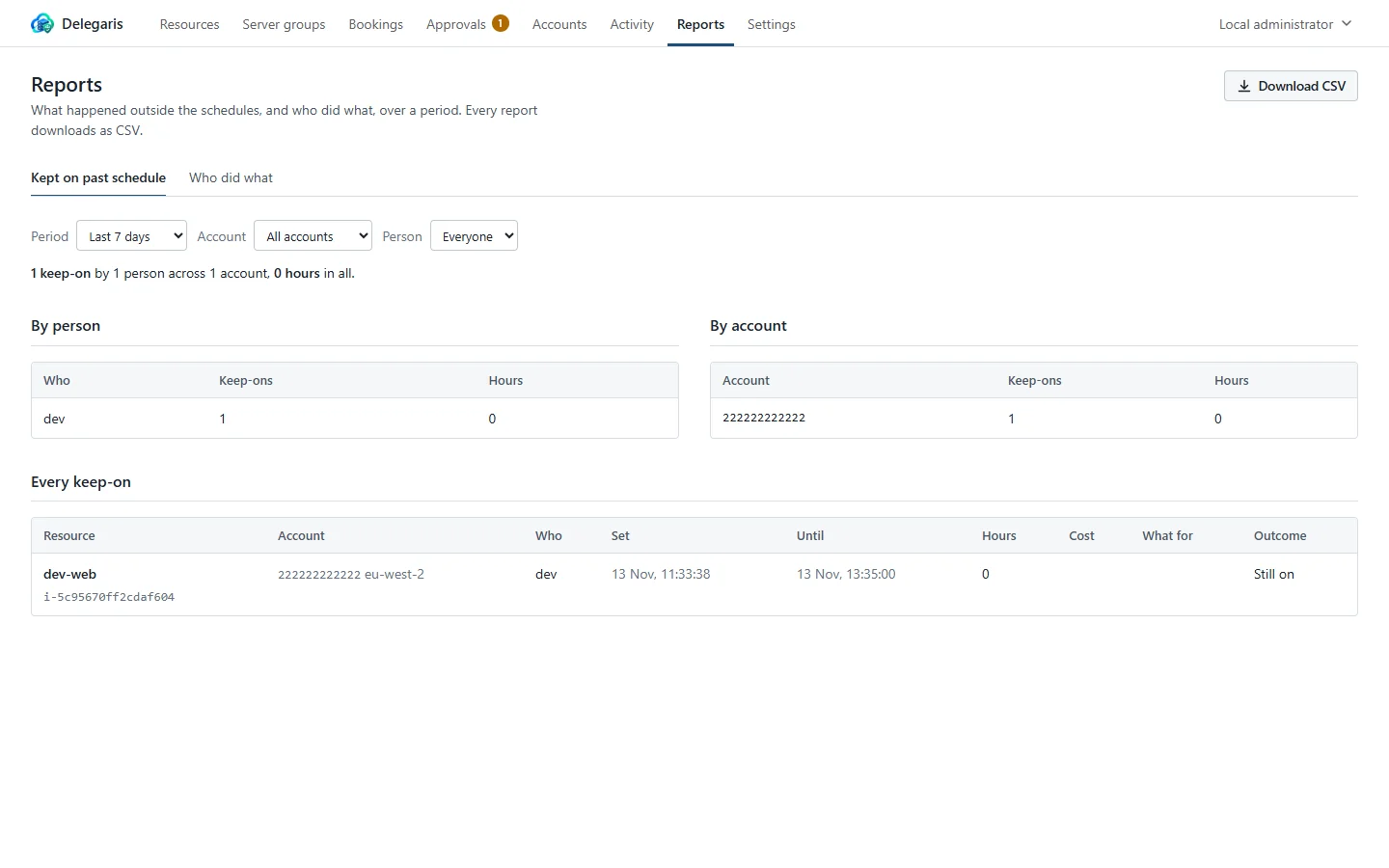
There are two reports, chosen with the tabs at the top:
| Report | What it shows |
|---|---|
| Kept on past schedule | Everything kept on or turned on outside its schedule: who, what, when, for how long, why, how it ended and roughly what it cost |
| Who did what | How many starts, stops, reboots, keep-ons, tag changes, approval requests and decisions and sign-ins each person made, and in each account |
Filters
| Filter | Choices |
|---|---|
| Period | Last 7 days, Last 30 days, Last 90 days, Last 180 days or Last 365 days |
| Account | All accounts, or one account seen in the report |
| Person | Kept on past schedule only: Everyone, or one person seen in the report |
Clear filters puts the account and person back to all.
Kept on past schedule
A summary line opens the report, for example "12 keep-ons by 4 people across 2 accounts, 31.5 hours in all, roughly $14.20 at on-demand list prices". If any keep-on could not be finished, the line says how many need a look.
Then three tables: By person (each person's keep-ons and hours), By account (the same per account, most hours first) and Every keep-on, newest first:
| Column | What it shows |
|---|---|
| Resource | The machine's name and ID, and "started for this" if it was off and the keep-on started it |
| Account | The account ID and region |
| Who | Whoever last set the time |
| Set | When the keep-on was first set |
| Until | The time it was set to end |
| Hours | How long it ran, from when it was set to when it ended (or to now, while it is still on) |
| Cost | Roughly what those hours cost at list price, where the machine has a known price |
| What for | The reason given |
| Outcome | Still on, Back on schedule, Put back early, or Could not be finished with the reason |
A keep-on counts in the period it was set in. If nothing was kept on, the page says "Everything ran to its schedule."
The cost uses the hourly price the machine had when the keep-on was set. It is an estimate from on-demand list prices, not the bill: see Cost estimates.
Who did what
A summary line gives the number of actions, by how many people, and how many were refused or failed. Then By person, one row per person with Starts, Stops, Reboots, Keep-ons, Tag changes, Requests, Decisions and Sign-ins, then Failed and Total, with an Everyone row adding them up; and By account, the same per account without sign-ins.
How the columns are counted:
- Starts include turning a machine on for a keep-on, and members started by a server group. Stops include Stop it now and members stopped by a group.
- Keep-ons count each time a time was set, so a keep-on whose time was changed twice counts three times.
- Tag changes are drops, re-adds and sets.
- Requests are requests for approval; Decisions are approvals and declines.
Downloading as CSV
Download CSV downloads the report you are looking at, with the period, account and (for keep-ons) person chosen.
- Kept on past schedule: one row per keep-on, with the resource, ID, type, account, region, who (user name and display name), when it was set, until when and when it ended (all UTC), hours, Estimated cost (USD), whether the service started it, outcome, reason and any error.
- Who did what: one row per person, with a count for each column, failed and total.
Cells a spreadsheet would read as a formula are written so they are not, so the files are safe to open in Excel.
Weekly summary in Slack
With Slack connected and a summary channel chosen, a summary of the previous week is posted every Monday at 09:00: how many keep-ons, by how many people and how many hours in all; each person's keep-ons and hours (up to ten people); how many could not be finished, if any; and a link to the full report. If nothing was kept on, it says so.
Choose the channel under Settings > Notifications, Weekly summary channel, and invite the Slack app to it; leave it empty for no summary. It goes out at 09:00 on the time zone set under Settings > Schedules. Where Microsoft Teams or a webhook is set up, the summary is sent there too, but only while the Slack summary itself is set up. See Teams and webhooks.
Related
- Activity log: every event, one by one.
- Cost estimates: where the cost figures come from.