Server groups
A server group is a set of servers and databases that go up and down together, in a set order: typically a database first, then the servers that need it. Instead of starting each one and waiting, people start the whole group with one button.
Open Server groups in the top bar.
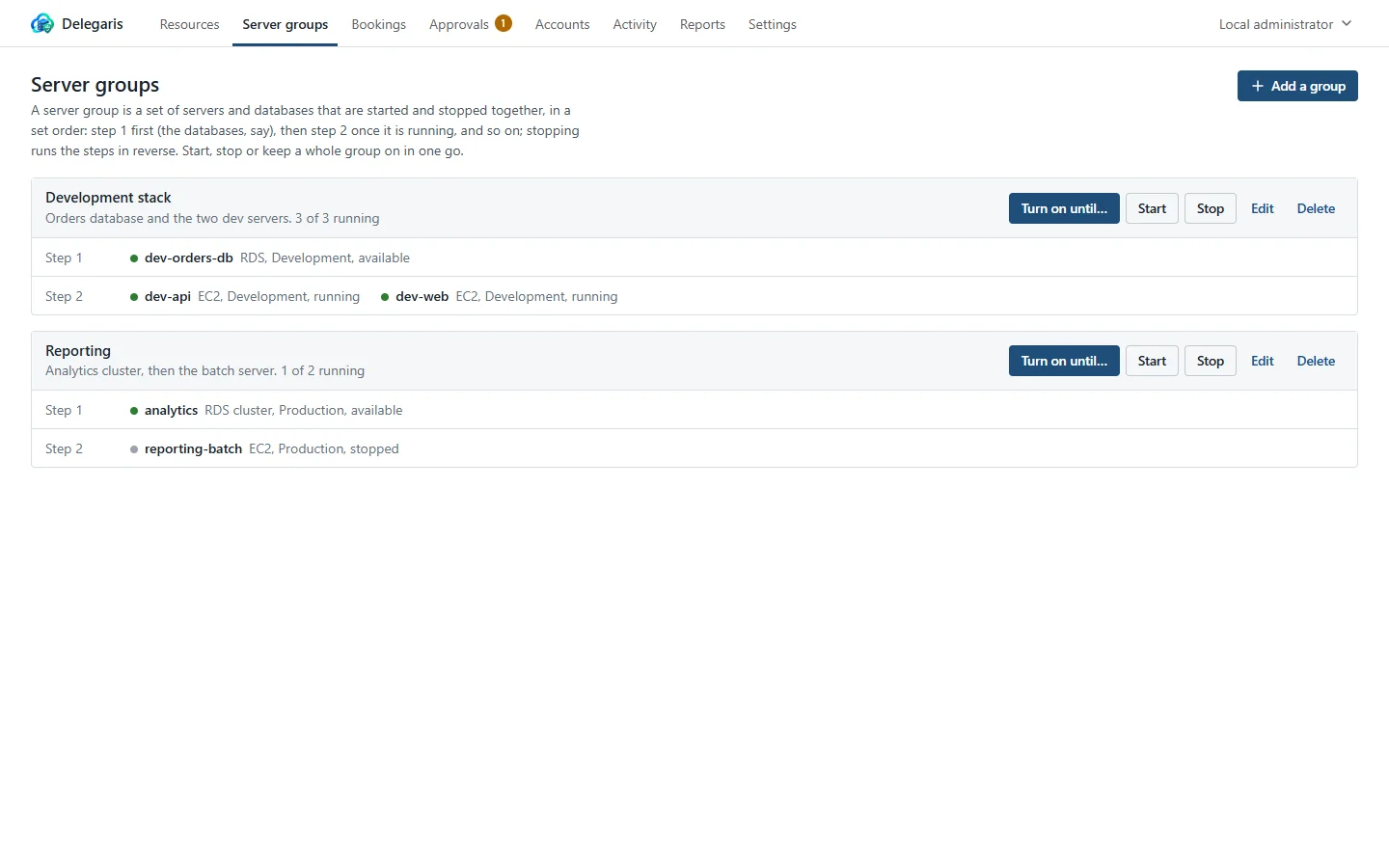
What you see
Each group shows its name and description, how many of its members are running, and its steps in order. Each member is listed with its state, type and account.
You see a group once you can see anything in it. Members you cannot see are not named, only counted ("2 you cannot see"). Administrators see every group, including members that can no longer be found ("not found").
Starting and stopping a group
| Button | What it does |
|---|---|
| Start | Starts step 1, waits until everything in it is running, then starts step 2, and so on |
| Stop | Asks you to confirm, then stops the last step first and works back to step 1, waiting for each step to stop before the next |
| Turn on until… | Keeps the whole group on until a time (see below) |
While a group is starting or stopping, the page shows its progress: "Starting, step 2 of 3: waiting for app-1, app-2. Asked for by jsmith." The buttons are greyed out until it finishes.
Members that are already in the state wanted are skipped.
If a member cannot be found (it has been deleted, or its account is no longer connected), the group's buttons are greyed out. An administrator sees the member marked "not found" and can remove it with Edit.
If a step has not finished within 20 minutes, the run stops there and the group shows why: "The last start did not finish: db-1 did not start within 20 minutes". The same happens if AWS refuses one of the members.
Turning a group on until a time
Turn on until… works like keeping a machine on, for every member at once:
- Choose For how long (1 hour to 8 hours) or an exact time under Until, and say What for.
- Press On until time.
Every member comes off its schedule now, and the members start in order, step by step. At the time set, each goes back on its schedule, and is stopped unless its schedule has it running then.
At the end of the keep-on the members are stopped together, not in reverse order. Each member's keep-on can then be changed or ended from the Resources page, like any other.
Who can use a group
A person can use a group when their access rules give them that action on every member:
- Start needs the start right on every member, Stop the stop right, and Turn on until… the keep-on right.
- The right has to be held outright. If any member needs approval for that action, the button is greyed out and the group cannot be run as one. Ask for that member from the Resources page instead.
- If any member is protected, only administrators can start or stop the group.
Buttons you cannot use are greyed out.
Setting up groups
Only administrators can add, change and delete groups.
Adding a group
- On Server groups, press Add a group.
- Give it a Name (for example "Finance stack") and, optionally, a Description.
- Under Steps, use Add a resource… to put resources in step 1.
- Press Add a step for the next step, and fill that in. Use Move earlier, Move later and Remove step to arrange them.
- Press Add group.
Everything in a step starts together, and the next step waits until all of it is running. A group can have up to 10 steps and 100 resources, and a resource can only be in a group once.
To change a group, press Edit; to delete it, press Delete. Deleting a group does not touch the machines in it.
Adding from the Resources page
Groups can also be filled from the Resources page:
- Tick the resources to add.
- Press Add to server group… in the bar at the bottom.
- Under Group, choose an existing group, or New group….
- For an existing group, choose Where in the order: a new step at the end, or one of its existing steps. For a new group, give it a name; the resources become its first step.
- Press Add (or Create group).
Resources already in the group are skipped and the message says how many.
What is recorded
Activity records the request to start or stop a group, each member started or stopped (with the group's name and the step), and whether the run finished. Adding, changing and deleting groups is recorded as a settings change.