Access rules
Access rules decide who can see and do what. Administrators can do everything; everyone else gets only what a rule gives them. Until there is a rule, only administrators can see anything.
A rule reads as a sentence: who can do what on which resources, optionally except some, optionally only with approval, and optionally until it ends. For example:
Group
AWS-Web-Teamcan start, stop and keep on resources taggedTeam = web, except anything taggedEnvironment = prod*.
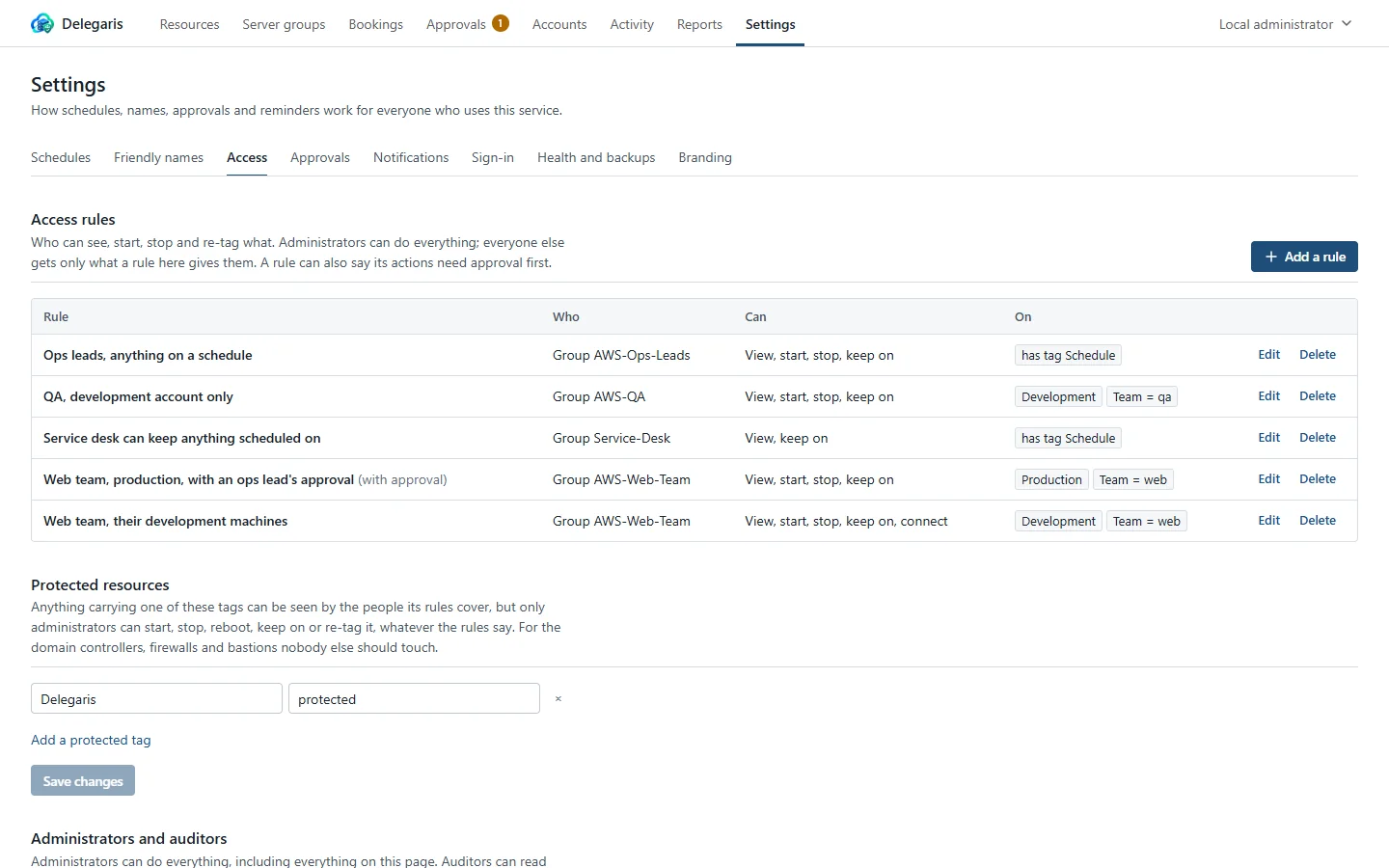
Where rules live
Open Settings > Access. The Access rules list shows each rule with:
| Column | What it shows |
|---|---|
| Rule | Its name, "(off)" if switched off, "(with approval)" if it needs approval, and when it ends or ended |
| Who | Group …, User … or Everyone who signs in |
| Can | View only, or View, and the actions it grants |
| On | What it covers, as chips, or Everything |
Add a rule opens the rule editor. Edit and Delete are on each row. Deleting a rule takes away whatever that rule alone was granting, straight away.
Making a rule
Add a rule opens a dialog with these parts.
Rule name
A name you will recognise later, for example Web team, production.
Who
| Choice | Matches |
|---|---|
| A group | Everyone in that group. For Active Directory, the group name (nested membership counts). For Entra ID, the group's object ID or an app role |
| One user | One person, by sign-in name, for example jsmith or jsmith@corp.example |
| Everyone who signs in | Everyone. Use this for AD's primary group (Domain Users), which AD does not report |
Find… beside the name searches the directory so you can pick rather than type. See Active Directory.
Can
Everything a rule covers is visible to the people it names. Tick what else they may do:
| Tick box | Lets them |
|---|---|
| Start | Start a stopped resource |
| Stop | Stop a running resource |
| Reboot | Restart a running resource in place, without stopping it |
| Keep on, or turn on, for a set time | Hold a resource off its schedule until a time they choose, starting it first if it is stopped. See Keeping on |
| Drop, re-add and set tags | Manage the tag keys you list. See Tags |
| Connect with Remote Desktop | Download a Remote Desktop file for machines an administrator has set it up on. See Remote Desktop |
Each is separate. A rule with nothing ticked gives sight only.
- Keep on needs none of the other rights. Delegaris does the starting, the stopping at the end and the schedule tag itself, only as part of the keep-on.
- Drop, re-add and set tags asks for Tag keys they may manage. Press Enter after each key. Use
*for any key. Keys are case sensitive. Tags starting withaws:can never be changed. - Connect with Remote Desktop hands over an address, never a password, and never needs approval.
If a rule lets people change the same tag that decides what the rule covers, the editor warns you. They could move resources into or out of their own reach by setting it. Dropping and re-adding is safe, because a dropped tag still counts for matching.
Only with approval
Below the tick boxes, Only with approval makes the rule's actions go to an approver first. Name Approver groups and Approver users, or leave both empty to mean the administrators. See Approvals.
On
Narrow what the rule covers. Leave a part empty to mean "any". A resource has to match every part you fill in.
| Field | Matches |
|---|---|
| Accounts | Resources in the ticked accounts |
| Types | Resources of the ticked kinds: EC2 instances; RDS, Aurora, DocumentDB and Neptune; Auto Scaling groups; ECS services; EKS node groups; Redshift clusters; SageMaker notebooks; Lightsail instances |
| Tags the resource must have | Add a tag condition for each. A key and a value, or * for any value. Values can use * as a wildcard, for example dev* |
| Regions | Resources in these regions, for example eu-west-2 |
| Specific instances or databases | IDs or names, for example i-0abc123def4567890 or uat-web-*. * is a wildcard. Matched against the resource's ID or its name, ignoring case. Letters, digits, hyphens and * only |
Except
Take things back out of what the rule covers. Anything matching one of these is left out, even if it matches everything under On.
| Field | Leaves out |
|---|---|
| Not in these accounts | Resources in the ticked accounts (shown when there is more than one account) |
| Not with these tags | Resources with a matching tag, for example Environment = prod*. Add a tag to exclude for each |
| Not these instances or databases | IDs or names, for example *-dc-* |
Except narrows only this rule. Another rule can still cover the same resource. To keep particular machines away from everyone but administrators, whatever the rules say, use protected resources instead.
Show what this covers
Show what this covers lists what the rule matches right now: "n of total resources match right now", with up to 25 names. Use it before saving, especially for rules with wildcards or exceptions.
Ends
Optional. A date and time after which the rule stops counting. Nothing else changes: the rule stays in the list, marked Ended, and can be edited to extend it. Rules made from a request for access usually have one.
Rule is on
Untick Rule is on to switch a rule off without deleting it. The list shows it as "(off)".
Press Add rule (or Save changes) to save. Changes to rules apply immediately.
How rules combine
- A person's permissions on a resource are the sum of every rule that applies to them and covers that resource.
- There are no deny rules. To take something away, narrow or delete the rule that gives it, or use Except.
- Administrators can do everything, whatever the rules say.
- If one rule grants an action outright and another grants the same action only with approval, the outright one wins and no approval is asked for.
Rules are checked against live tags
Permissions are checked against the resource's tags as they are in AWS at the moment of the action, not against what the browser showed. Re-tagging a resource in AWS changes who can act on it at once.
- A tag dropped through Delegaris still counts when matching, so nobody locks themselves out by dropping the tag their access depends on.
- Changes to rules apply immediately.
- Changes to someone's group membership in the directory apply from their next sign-in.
What people see
Each person can see their own rules, in plain words, under My account. On the Resources page they see only what their rules cover. Someone with no rules sees "Nothing here for you yet: no access rule covers you. Use Request access to ask for what you need."
Activity
Making, changing and deleting a rule is recorded in the activity log with who did it.
Examples
| Need | Rule |
|---|---|
| Developers may start and stop their team's dev machines | A group AWS-Web-Team; Start, Stop; Tags Team = web, Environment = dev |
| The same team may stop production, but only with approval | A group AWS-Web-Team; Stop; Tags Team = web, Environment = prod; Only with approval, approver group AWS-Ops-Leads |
| Ops leads may keep anything with a schedule on | A group AWS-Ops-Leads; Start, Stop, Keep on, or turn on, for a set time; Tags Schedule = * |
| Testers may take machines off the scheduler | A group QA; Drop, re-add and set tags with key Schedule; Accounts Test |
| A contractor needs one server for a week | One user jbloggs; Start, Stop; Specific instances or databases uat-api-1; Ends a week from now |