Navigating Delegaris
This page is a map of the Delegaris web UI, so you know where to find things. Every page has the same layout: the top bar with the main pages, and your name at the top right for the user menu. Actions show a short message in the corner saying whether they worked. Confirmations clear themselves; problems stay until you close them.
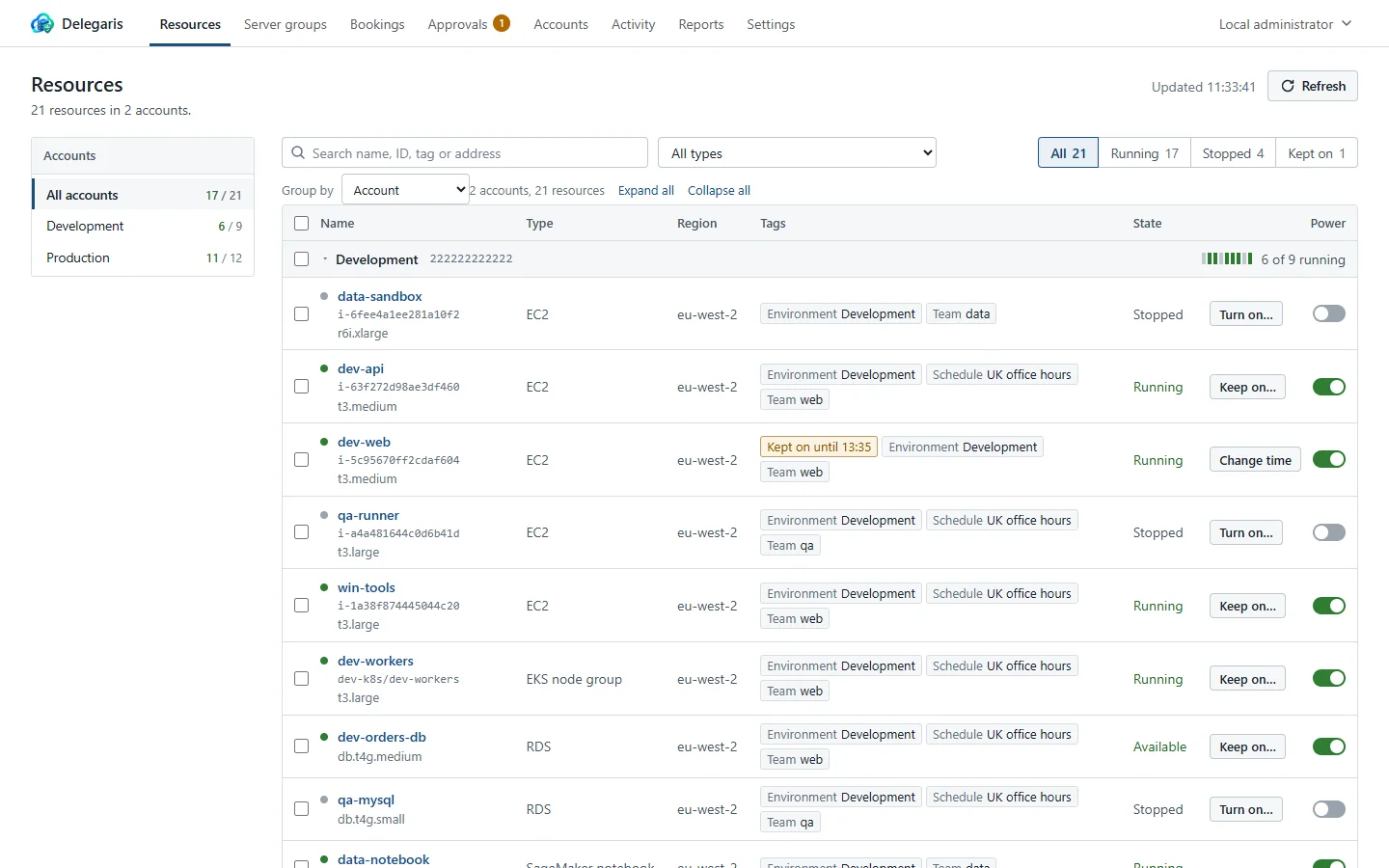
The top bar
The top bar shows the organisation's name and logo (see Branding) and the pages you can use. Pages a person cannot use are not shown.
| Page | Who sees it | What it is for |
|---|---|---|
| Resources | Everyone | The machines and services you can see, and what you can do to them. The first page after signing in. See The Resources page |
| Server groups | Everyone | Groups of resources that start in order and stop in reverse. Administrators define them here. A group appears once you can see something in it. See Server groups |
| Bookings | Everyone | Keep-ons booked ahead. Your own; administrators can switch to everyone's. See Booking ahead |
| Approvals | Everyone | Requests waiting for you to decide, your own requests, and for administrators requests for access. A number beside it shows how many are waiting for you. See Approvals |
| Accounts | Administrators | The AWS accounts Delegaris manages, and its own AWS identity. See Adding accounts |
| Activity | Administrators and auditors | The audit log. See Activity log |
| Reports | Administrators and auditors | Who kept what on, and who did what. See Reports |
| Settings | Administrators | How Delegaris works for everyone (see below) |
For the roles, see Administrators and auditors. Someone with no role and no access rules sees Resources with nothing on it, and a Request access button.
The user menu
Click your name at the top right. The menu shows:
- your sign-in name, and how you signed in: "Signed in with Active Directory", "Microsoft sign-in", "the local administrator account" or "a demo account", followed by ", as an administrator" or ", as an auditor" where that applies
- the groups your sign-in reported, folded up under a count. If there are none, "Your sign-in did not include any groups."
- Appearance: Auto (follow the device), Light or Dark. The choice is remembered in this browser
- My account
- Sign out
My account
My account is everyone's own page. It has:
- Two-step sign-in: turn it on or off, make new recovery codes, move it to a new phone
- What you can do: the access rules that apply to you, in plain words, and Request access
- Your requests for access: what you have asked for and what happened
- Also yours: links to your Bookings and your API tokens, with a count of each
See My account.
API tokens
The API tokens page is reached from My account > Also yours > API tokens. It is not in the top bar. Everyone can open it; whether they can make tokens depends on Who may have tokens, which administrators set at the top of the same page. See API tokens.
Settings
Settings is for administrators. It has a tab for each concern:
| Tab | What it contains |
|---|---|
| Schedules | The schedule tag (or tags) your scheduler reads, what each does, the longest keep-on, the reminder lead time, the time zone, and whether a reason is required. See Schedule tags |
| Friendly names | Names for tag values, such as "Office hours" for 8-8, the hours behind them, and Read from the scheduler…. See Friendly names |
| Access | Access rules, Protected resources, and Administrators and auditors. See Access rules |
| Approvals | How long a request waits, and the Slack approvals channel. See Approvals |
| Notifications | Slack reminders and its test, Slack channels, and Microsoft Teams and webhooks. See Slack |
| Sign-in | Ways in, Active Directory, Microsoft Entra ID, Administrators, and Two-step sign-in (MFA). See How sign-in works |
| Health and backups | Problems that need attention, the nightly backup and Back up now, Slack button status, and Activity log to S3. See Backups and health |
| Branding | Name, logo, browser icon, colours and sign-in page text. See Branding |
Each tab has its own address that you can link to or bookmark, for example #/settings/access or #/settings/signin.
Addresses
Delegaris keeps the page in the part of the address after #, so every page can be bookmarked or linked to:
| Address | Page |
|---|---|
#/ | Resources |
#/groups | Server groups |
#/bookings | Bookings |
#/approvals | Approvals |
#/accounts | Accounts |
#/activity | Activity |
#/reports | Reports |
#/settings/<tab> | A Settings tab: schedules, names, access, approvals, notifications, signin, health, branding |
#/account | My account |
#/tokens | API tokens |
Links in Slack and Teams messages use these addresses, built from PUBLIC_URL. A page you cannot use takes you to Resources instead.
The sign-in page
The sign-in page shows the ways in that are switched on: Sign in with Microsoft for Entra ID, and the Username and Password form for Active Directory and the local administrator. Under Sign in it can show a line of your own, and a help line for people who cannot get in, both set under Settings > Branding.
If PUBLIC_URL is plain http:// and the page is opened at another address, it warns you and says which address the service expects. Opened over plain http:// when PUBLIC_URL is https://, it explains that the browser will not keep the sign-in and links to the right address. See Behind a reverse proxy.