My account
My account is your own page: how you sign in, your two-step sign-in, what you are allowed to do, and the things you have asked for. Everyone has one, administrator or not.
To open it, click your name at the top right of any page, then My account.
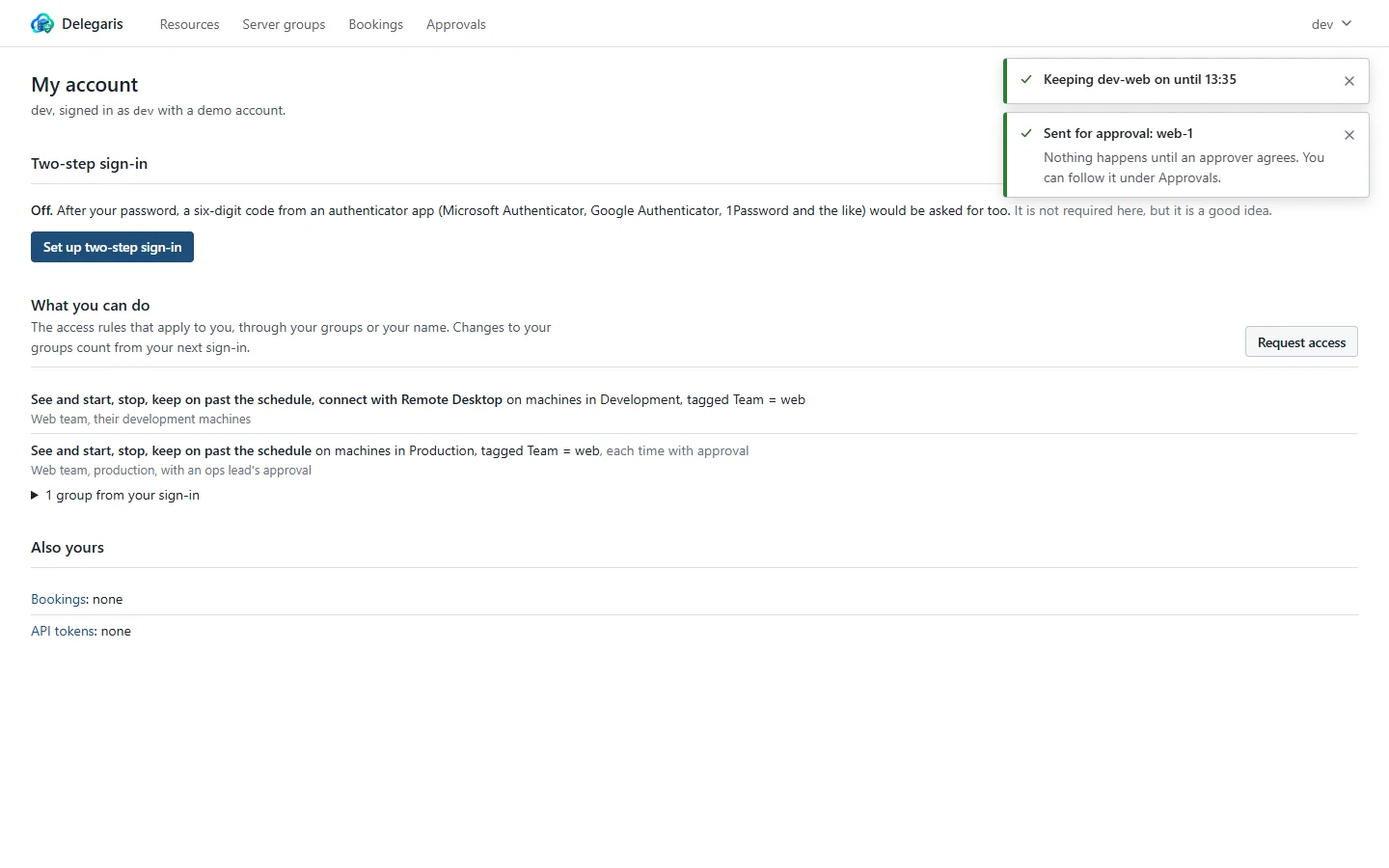
The top of the page says who you are and how you signed in, for example: "Jane Smith, signed in as jsmith with Active Directory."
Two-step sign-in
This section lets you manage two-step sign-in for yourself. It says whether it is On or Off, and whether it is required here: "It is required for everyone here.", "It is required for administrators here", or "It is not required here, but it is a good idea."
If you sign in with Microsoft, it says your sign-in has its own two-step check and there is nothing to set up here.
Turning it on
- Press Set up two-step sign-in.
- Scan the QR code with your authenticator app. If you cannot scan it, type the key shown under it into the app.
- Type the code the app shows into The code from your app and press Turn on.
- Your ten recovery codes are shown. Use Copy them and keep them somewhere safe, away from your phone. Then press I have kept them.
From then on you are asked for a code at every sign-in, whether or not it is required.
Once it is on
The section shows when you set it up and how many recovery codes you have left.
| Button | What it does | What you type |
|---|---|---|
| New recovery codes | Makes ten new recovery codes. The old ones stop working | A code from your app (Make new codes) |
| Turn off | Turns two-step sign-in off. Only shown where it is not required | A code from your app, or a recovery code |
| Move to a new phone | Where it is required: removes the old set-up and goes straight into setting it up again | A code from your app, or a recovery code, then the new set-up |
Each code works once. If you type several wrong codes in a row, you are asked to wait a few minutes.
If you have lost your phone and your recovery codes, ask an administrator to reset your two-step sign-in. You then set it up again at your next sign-in.
What you can do
This section lists the access rules that apply to you, through your groups or your name, each as a sentence. For example:
See and start, stop, keep on past the schedule on EC2 in Development, tagged Team = web, except tagged Environment = prod*; each time with approval
- "See" alone means you can see those machines but not act on them.
- each time with approval means each action is sent to an approver first. See Approvals.
- until means the rule ends then.
- The rule's own name is shown under each line.
If no rule covers you yet, it says "No access rule covers you yet, so there is nothing for you to see. Ask for what you need." Administrators see "As an administrator you can see and do everything."
Under the list, groups from your sign-in shows the groups your sign-in reported. Changes to your groups in the directory count from your next sign-in.
Requesting access
If you need something you do not have, press Request access at the top of the What you can do section. Say what you need to do, which machines, for how long and why. The administrators are told. See Requesting access.
Your requests, and what happened to them, are listed under Your requests for access: Waiting, Granted, Declined or Withdrawn, with who decided and any note they left. While a request is waiting, Withdraw takes it back.
Also yours
Links to your other things, with a count of each:
- Bookings: keep-ons you have booked ahead that are still to come. See Booking ahead.
- API tokens: tokens you have made for scripts and pipelines that are still valid. See API tokens.
The user menu
Clicking your name at the top right also shows:
- your sign-in name, how you signed in, and whether you are an administrator or an auditor
- your groups (or "Your sign-in did not include any groups.")
- Appearance: Auto, Light or Dark. Remembered in this browser
- My account
- Sign out
See Navigating Delegaris.