Approvals
For the delicate actions, such as stopping production or keeping a customer-facing database on overnight, an access rule can say that its actions need approval first. Pressing Stop then sends a request instead of stopping anything. An approver agrees or declines, and the action runs the moment one of them agrees.
Making a rule need approval
- Open Settings > Access and add or edit a rule (see Access rules).
- Tick the actions it grants, then tick Only with approval.
- Name the approvers:
- Approver groups: press Enter after each, or use Find a group…
- Approver users: sign-in names, or use Find a person…
- Leave both empty to mean the administrators.
- Save the rule.
Approval covers start, stop, reboot, keep on (and turn on), and dropping, re-adding and setting tags.
What happens
- Someone covered by the rule presses Stop (or Start, Reboot, Keep on until…, or changes a tag). Nothing happens to the resource. A request is written instead, the result says "Sent for approval", and the row on the Resources page shows Waiting for approval.
- The approvers are told: in Slack, directly, if it is set up; in the approvals channel if one is set; and in Teams or the webhook if those are set up. See Slack. Only approvers who have signed in to Delegaris at least once can be messaged directly, because that is how Delegaris learns their email address.
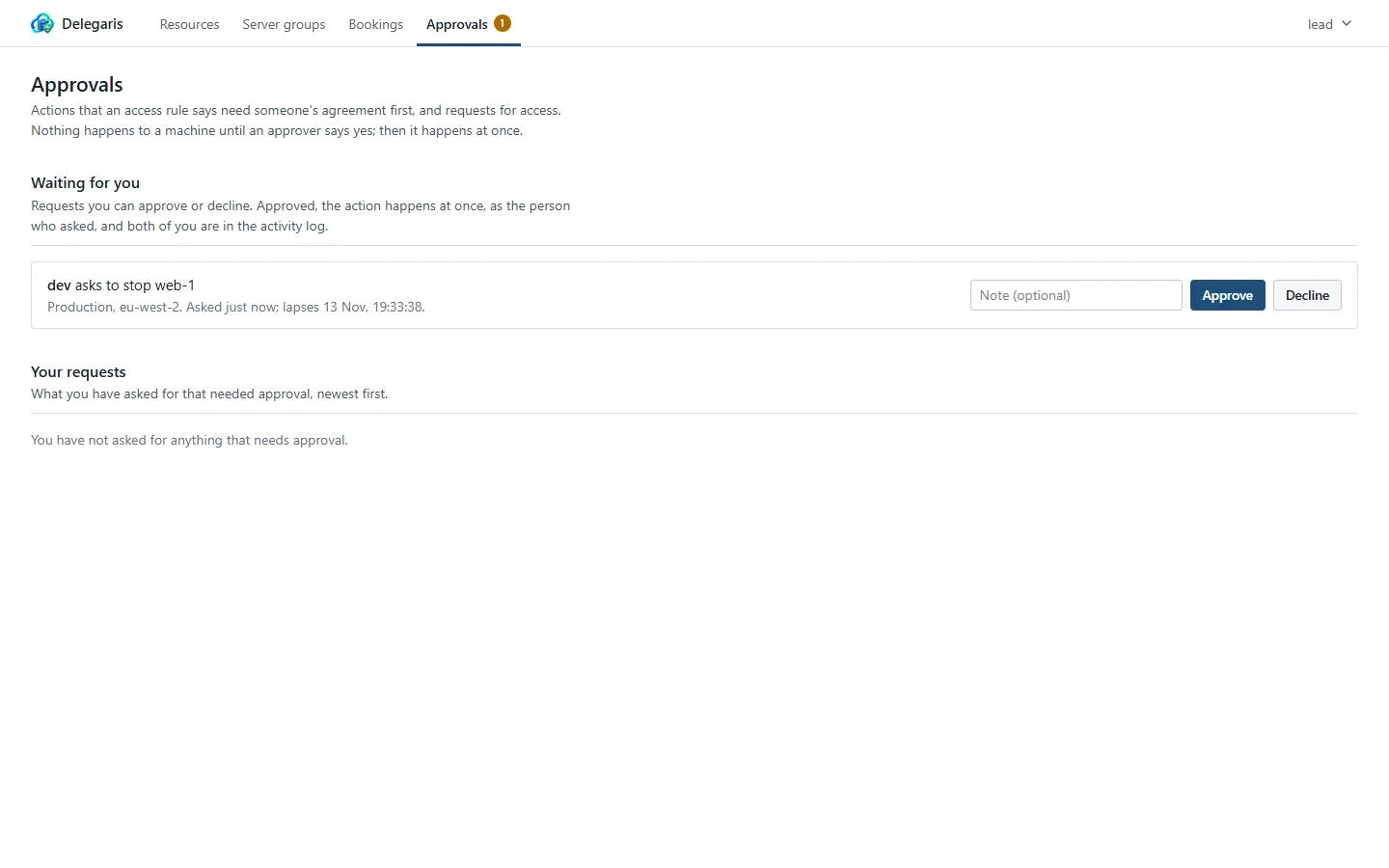
- An approver opens Approvals. Under Waiting for you they see who asked for what, on which account and region, when it was asked, when it lapses, and the reason given. They can add a note, then press Approve or Decline.
- Approved, the action runs at once, as the person who asked. The requester is told in Slack how it went.
Selecting several resources and pressing one button makes a single request for all of those that need approval. Asking again for the same action on the same resource while a request is waiting is refused: "Already waiting for approval".
Approved actions run with the requester's rights now
When a request is approved, the action runs as the person who asked, with their access rules as they are at that moment. If their access was taken away in the meantime, it still counts, and the action fails rather than running. All the usual checks apply, including protected resources.
Who can decide
- The approvers named on the rule, or the administrators if none are named.
- If several rules that need approval cover the same resource, the approvers of all of them can decide.
- Administrators can decide any request.
- People cannot approve their own requests.
Deciding in Slack
With Slack connected, including the app-level token for buttons, each approver gets the request directly with Approve and Decline buttons. Pressing one decides it exactly as the Approvals page would, as that approver:
- Delegaris finds who pressed it by their Slack account's email address and checks they may decide this request.
- Approved, the action runs at once and the message is replaced with how it went.
- A request that has already been decided says so, and by whom.
The approvals channel gets the request as a message without buttons, because in a shared channel anyone could press them. See Slack.
Requests for access (as opposed to requests for approval) still need the web page, because granting one means choosing the rule. See Requesting access.
Lapsing and withdrawing
A request nobody decides lapses:
- after the time set under Settings > Approvals > Requests expire after, in hours (default 8, between 1 and 168), or
- for a keep-on, when the time it asked for has passed, if that comes first.
The requester is told in Slack that it expired. They can ask again.
The requester can also Withdraw a request while it is waiting, from Your requests on the Approvals page.
Settings
Under Settings > Approvals:
| Setting | Default | Purpose |
|---|---|---|
| Requests expire after, in hours | 8 | How long a request waits for a decision |
| Approvals channel | none | A Slack channel where every request is posted, as well as to the approvers directly |
Both can be given starting values in .env as APPROVAL_EXPIRES_HOURS and SLACK_APPROVALS_CHANNEL. Once saved in the web UI, the saved values apply.
The Approvals page
Everyone has an Approvals link in the top bar. A number beside it shows how many requests are waiting for you; for administrators it also counts requests for access.
| Section | What it shows |
|---|---|
| Waiting for you | Requests you can approve or decline |
| Requests for access | Administrators only: people asking for access they do not have |
| Your requests | What you have asked for that needed approval, newest first, with its status (Waiting, Approved, Declined, Withdrawn or Expired), who decided, their note and how it went |
What never needs approval
- Ending a keep-on early. Stop it now and Put back on schedule are a return to normal.
- Connecting with Remote Desktop. It hands over an address, nothing more.
- Anything an administrator does.
- Anything another rule grants outright. If one rule grants Stop with approval and another grants Stop without, the second wins and no approval is asked for.
Where approval and other features meet
- Booking ahead. Booking needs the keep-on right outright. Where keeping a resource on needs approval, it cannot be booked: "Keeping this resource on needs approval each time, so it cannot be booked ahead. Ask on the day." See Booking ahead.
- Server groups. A group runs only on rights held outright. If any member would need approval, the group cannot be run as one; ask for that member from the Resources page. See Server groups.
Activity
The activity log records the request, the decision and the action itself, each under the name of the person who did it. The action's entry says which request it was approved under and by whom.