Keeping a machine on
For the evening someone needs a server after its schedule would have turned it off. Instead of editing the schedule tag, they set a time. Delegaris takes the machine off its schedule until then, and puts it back afterwards.
How it works
- You choose Keep on until… (or Turn on until… if the machine is off), pick a time, and say what it is for.
- Delegaris starts the machine if it is stopped, takes the schedule tag off it so the scheduler leaves it alone, and remembers the tag's value.
- If you need longer, you choose Change time and move it, or press +1 hour on the Slack reminder.
- When the time arrives, Delegaris stops the machine (if its schedule would have it off then) and puts the schedule tag back.
You never edit a tag and need no right to. Delegaris takes the tag off and puts it back itself, as part of the keep-on and nothing else.
Keeping on is its own right in an access rule: Keep on, or turn on, for a set time. It needs none of the start, stop or tag rights. See Access rules.
Starting a keep-on
There are three places to start one:
- Keep on… (or Turn on… for a stopped machine) in the row's Power column.
- Keep on until… or Turn on until… in the schedule line of the machine's detail panel.
- Keep on until… or Turn on until… in the bar at the bottom, after ticking several machines.
The button only appears where there is something to keep on past:
- a running machine with a schedule tag that stops it, or
- a stopped machine, schedule or not: it can always be turned on for a set time and is stopped again afterwards.
A running machine with no schedule tag, or one on an "always on" schedule, has no button: nothing would turn it off.
The dialog
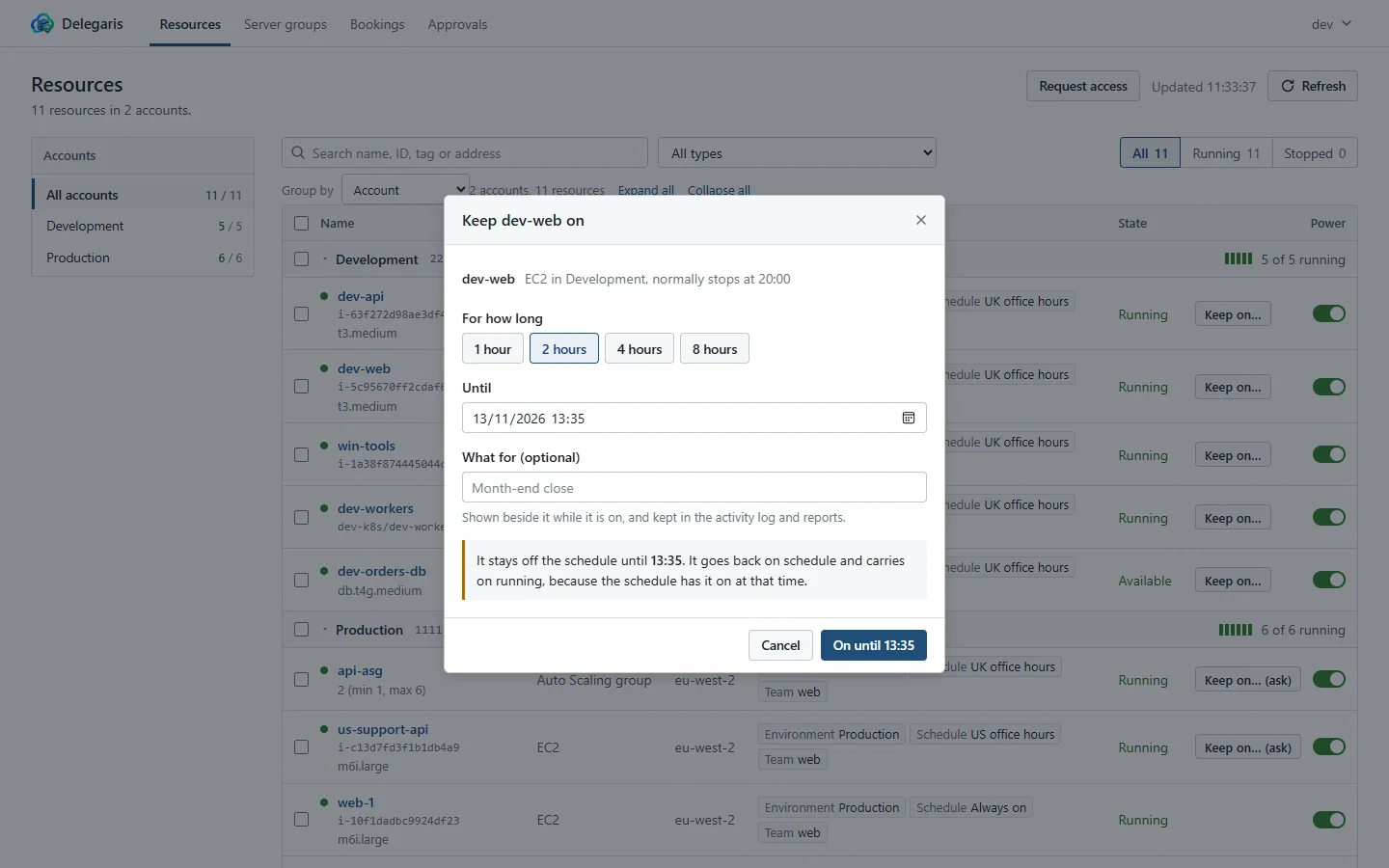
The dialog lists the machines, with what it knows about each: "stopped: it will be started", "normally stops at 20:00", or "normally off until 08:00 tomorrow".
| Field | What to do |
|---|---|
| For how long | Press 1 hour, 2 hours, 4 hours or 8 hours (rounded up to the next five minutes) |
| Until | Or pick an exact date and time, on your own clock |
| What for | Optional, unless an administrator has made it compulsory. Shown beside the machine while it is on, and kept in Activity and Reports |
| Stop name at that time | Only shown when Delegaris does not know the schedule's hours (see below) |
Under the fields, a paragraph says exactly what will happen: which machines are started now, that they stay off the schedule until the time, and whether each is then stopped or carries on running. With Slack connected, it says when the reminder will come. Where AWS publishes a price, it adds roughly what the keep-on will cost at list price (see Cost estimates).
Press On until time. A message confirms "Keeping web-1 on until 22:40", and the machine shows Kept on until 22:40 in its Tags column.
What happens to the schedule tag
Which tag counts as the schedule is set by an administrator under Settings > Schedules (the default is Schedule). See Schedule tags.
When the keep-on starts, Delegaris remembers the tag's value in its own database, then removes the tag from the machine in AWS. The scheduler no longer sees it and leaves it alone. In the detail panel the tag is shown struck through, with "off until" the time.
Where the scheduler uses separate start and stop tags (such as AutoStart and AutoStop), only the stop tag comes off. The machine is not stopped tonight, but still starts at its usual time tomorrow.
When the keep-on ends, the remembered value goes back on. If someone has put the tag back by other means in the meantime (the console, Terraform), their value stays and the remembered one is discarded.
Whether it is stopped at the end
Delegaris decides this from the schedule when it knows the schedule's hours (an administrator gives them under Friendly names, or reads them from the scheduler):
- If the schedule would have the machine off at the end time, it is stopped and the tag goes back.
- If the schedule would have it on anyway, as when something is kept on overnight into the next working day, the tag goes back and the machine carries on running.
Where the hours are not known, the dialog shows a Stop name at that time tick box (ticked to start with) and leaves it to you. Untick it if the schedule will already have the machine running by then.
A machine with no schedule at all is always stopped at the end, since nothing else would turn it off.
The machine is stopped at the end whether or not anyone stopped it by hand in the meantime, so it is always where the schedule expects it.
Changing the time
Open the machine and press Change time (in the row or the schedule line). The dialog opens at the current time; pick a new one and confirm. Only the latest time counts. Moving the time earns a fresh reminder.
If the new time is earlier than the one set before, the dialog says so.
Two people, one machine
A machine has one keep-on, whoever set it.
- Anyone with the keep-on right may make it later. For them the button reads Extend. The schedule line says "You can make it later; only they or an administrator can end it sooner."
- Only the people who have set a time on it, or an administrator, may make it earlier, stop it now or put it back on its schedule. So nobody's evening is cut short by a colleague who did not know they were still working. Trying to bring someone else's time forward is refused with "Name has it on until 22:00. You can extend that, but only they or an administrator can bring it forward."
- Whoever last set the time gets the reminder. The others are told in Slack when the time moves, and when the keep-on ends early.
- Two requests at the same moment end as one keep-on, even on different copies of the service: one is let in and the other is applied to it as an extension, or refused with the reason.
The schedule line lists everyone who has set a time on it ("by Alice and Bob"), and hovering over Kept on until in the row shows the same.
Ending early
Two buttons in the schedule line, for the people who set the time and for administrators:
| Button | What it does |
|---|---|
| Stop it now | Stops the machine and puts the schedule tag back straight away, as if the time had arrived |
| Put back on schedule | Puts the schedule tag back and leaves the machine running. For when it was set by mistake |
Neither ever needs approval: both are a return to normal. If the machine cannot be stopped this minute (it is mid-change), Stop it now says so and Delegaris keeps trying.
You can also stop the machine with the power switch while it is kept on. That does not end the keep-on: the tag still goes back at the time that was set.
Reminders
With Slack connected, the person who last set the time gets a direct message before it ends (15 minutes by default), listing every machine ending at that time, with +1 hour and +2 hours buttons where the Slack app allows buttons. Another message follows when the machines have been stopped. Only the person the reminder was sent to can press its buttons, and the longest keep-on still applies.
The same warning shows at the top of the Resources page, with a Change the time link.
Keeping machines on works the same without Slack.
Limits
These are set by an administrator under Settings > Schedules:
| Setting | Default | Effect |
|---|---|---|
| Longest keep-on, in hours | 24 | How far ahead someone may set the time, counted from now |
| Reminder, in minutes before | 15 | When the reminder is sent |
| Ask what it is for whenever something is kept or turned on | Off | Makes What for compulsory for a new keep-on |
A time beyond the limit is refused in the dialog: "The longest it can be on for is 24 hours, which is until..."
If the stop fails
If AWS refuses the stop, or the machine is mid-change, Delegaris tries again every 30 seconds for two hours. The schedule tag goes back on the first attempt regardless, because a machine left off its schedule is the worse outcome. If it still cannot stop it after two hours, it gives up, records the failure under Activity, and tells the person in Slack. Administrators also get an alert while a keep-on is past its time and not finished.
A keep-on that fell due while Delegaris was not running is dealt with as soon as it starts again: everything it needs is in its database.
With approval
If your access rule says keeping on needs approval, the button reads Keep on… (ask). Pressing it sends a request instead; the keep-on starts the moment an approver agrees. A request for a keep-on lapses once the time it asked for has passed. See Approvals.
Server groups
A whole server group can be turned on until a time in one go. Its members start in order, and at the end each is put back on its schedule (and stopped, if its schedule would have it off).
What is recorded
Activity shows who kept what on until when, each change of time (including presses of the Slack buttons), and the automatic stop at the end, attributed to whoever set the time. The keep-on report adds up the hours and the rough cost.